Download your Canvas courses
A free browser extension that saves a whole course to your computer in one click: every file, page, assignment and grade, before your access ends.
4.8 from 20 ratings on the Chrome Web Storeused by 3,000 students and teachers
Courses don't stay open
When a term ends, a course turns read-only or disappears. When you graduate, your login goes too, sometimes on the same day.
What 23 universities doWhen does your Canvas close?
“You will lose access to all RMIT systems and software on the day you graduate (unless you’re continuing your studies with RMIT)”
From the university's own help pageFrom each school's own pages, checked on 24 October 2026. Not listed? The 23 we checked range from the day you graduate to never.
One click, or all at once
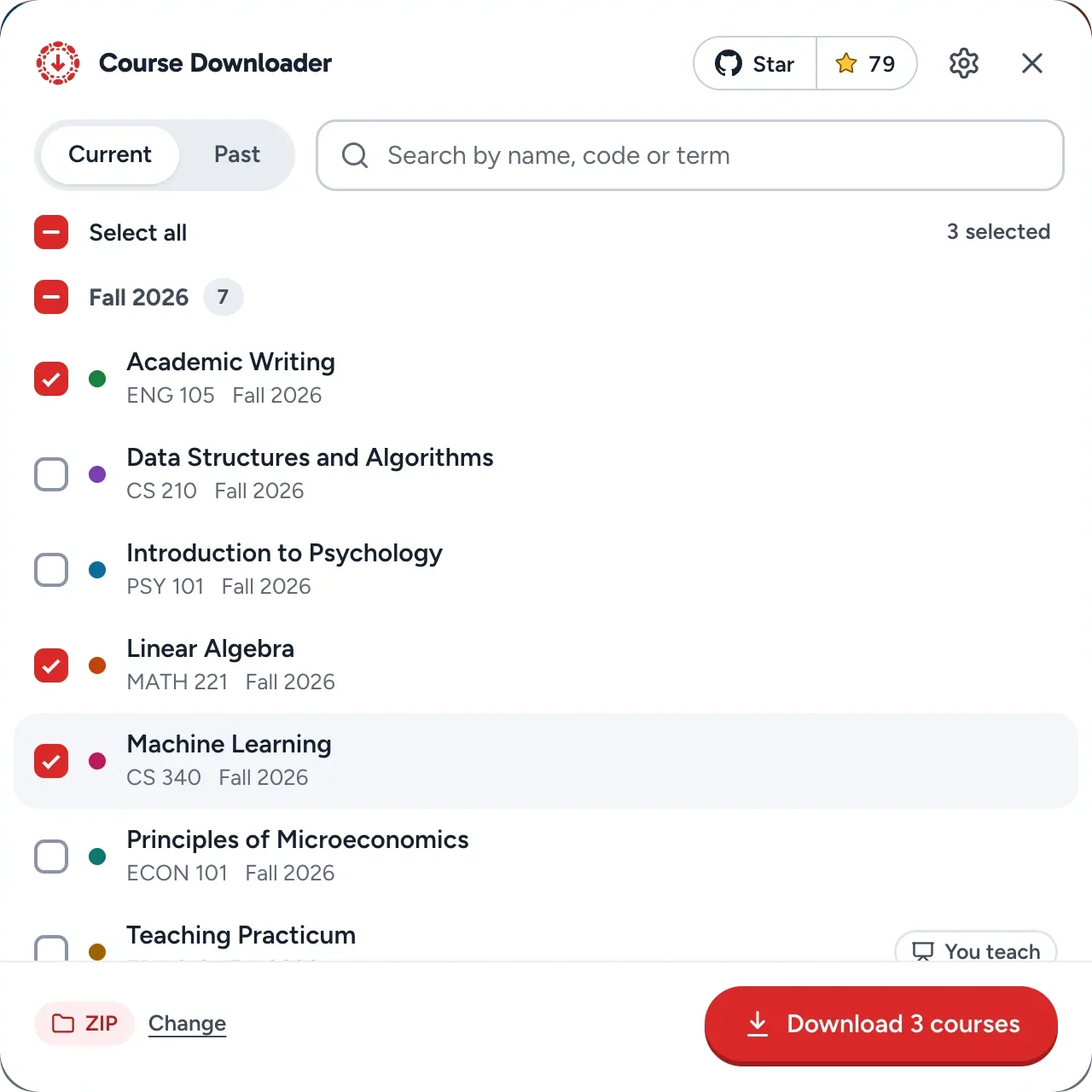
A Download course button appears on every course page, in your school's own colour. On your dashboard, pick as many courses as you like, current or past.
- Uses the Canvas you're already logged in to. No API token, no account.
- Keeps going in its own tab, so you can close Canvas.
- Works with any Canvas, also on your school's own web address.
Everything in the course
Files, pages, assignments, quizzes, discussions, announcements, your own submissions and grades. Links between them keep working offline. Pick how you want it:
The course as it is in Canvas, as pages that open in any browser without internet. Start with the Open me page.
A course guide with deadlines and grading, one file per module, and the slides and PDFs. Sized for NotebookLM, ChatGPT or Claude, and split when a course is too big.
The course you teach, quizzes with their questions included. Add students' submissions and grades when you need them, and the course package Canvas makes to import the course again.
Academic Writing.zip
- Open me - Academic Writing.htmlstart here
- Files
- Lectures
- Lecture 01 - Academic Writing week 1.pdf
- 11 more
- 3 more folders and the syllabus
- Lectures
- Pages4 pages
- Assignments5, with their rubrics
- Quizzes and discussions2 and 3
- Submissionsyour own work and feedback
- Grades.csv
- Deadlines.icsfor your calendar
Academic Writing - AI study pack.zip
- 00 Course guide.mddeadlines, grading
- 01 Week 1- Academic Writing week 1.md
- 02 Week 2- Academic Writing week 3.md
- 4 more modules
- M01 Lecture 01 - Academic Writing week 1.pdf
- M02 Lecture 03 - Academic Writing week 3.pdf
- 22 more slides and PDFs
31 sources, all in one notebook
Teaching Practicum.zip
- Open me - Teaching Practicum.htmlstart here
- Files
- Lectures12 PDFs
- Readings4 PDFs
- Syllabus.pdf
- Lectures12 PDFs
- Pages4 pages
- Assignments5, with their rubrics
- Quizzes2, with their questions
- Discussions3 prompts
- Deadlines.ics
- Gradebook.csvwith students' work
Academic Writing is saved
What's inside53 files
Files 1 couldn't be downloaded23 of 24
Lectures / Lecture 02 - Academic Writing week 2.pdfNot found in Canvas (HTTP 404)
Pages4
Assignments5
Quizzes2
Discussions3
Announcements3
Submissions4
Overview and course info9
Nothing goes missing quietly
Every download ends with a receipt: what's inside, and if a file couldn't be saved, which one and why. In this example, one lecture was gone from Canvas.
Each copy also has an overview page that opens without internet, with the course laid out by module, and a calendar file with every deadline.
Open a sample copyFor teachers, too
Archive the courses you teach before a term closes or your school changes systems: pages, files, assignments, quizzes with their questions, and every deadline. Add students' submissions and grades when you need them.
Optionally, Canvas's own course package (.imscc) is saved next to it, to import the course again later.
What a teacher's copy holdsTeaching Practicum is archived
Add when you need itSettings
Include students' workSubmissions, grades and names, when you need them.
Canvas's course package (.imscc)To import the course into Canvas again.
Your courses stay with you
There's no account and no tracking, and nothing about you or your courses is sent to us. The extension talks to your Canvas, with the login you already have, and once a day to GitHub for this project's star count.
It only reads: it never submits, posts or changes anything in your courses. Every line of it is open source under the MIT license.
What Chrome asks when you install it
Chrome shows these lines. Here's why each one is there.
- Read and change all your data on all websites
- Schools run Canvas on their own addresses, so the extension looks at a page to see whether it's Canvas. Everywhere else it stops at once and reads nothing.
- Manage your downloads
- To save the course files and the ZIP into your Downloads folder.
- Block content on any page
- Lets it fetch your course files from Canvas's file server. It blocks nothing.
- Display notifications
- To tell you when an automatic download of new files has finished.
In their words
“This has saved me countless hours and I just barely started using it!”
“Helped me download all of the resources I wanted to re-read and save from previous semesters!”

Made by a student
Jasper, Amsterdam
I built it in March 2026, when I wanted to keep my own courses after a term ended. 30 releases later it's still free, without ads, and it stays that way.
Questions people ask
Is it free?
Yes. No ads, no account, no paid version. It's open source under the MIT license.
Can my teacher see that I downloaded it?
Possibly. Canvas keeps an access report that teachers can open for each student, with the pages and files viewed and when. The extension opens everything with your own login, so a download can show up there as many items viewed at once.
The extension itself tells no one. How access reports work
Is it allowed?
It saves only what you can already open in Canvas with your own login. The copy is for you; your school's rules on sharing course material still apply.
Can it change anything in Canvas?
No. It only reads, at a pace Canvas allows, and slows down when Canvas asks it to. It never submits, posts or deletes anything. The one exception is for teachers who turn it on: Canvas then builds its course package, which adds an export file.
Does it save videos?
Videos uploaded to Canvas, yes. Recordings on Panopto, Kaltura or Canvas Studio aren't included, and the receipt lists them so you know.
Which browsers?
Chrome, Edge, Brave and other Chromium browsers on a laptop or desktop, from the Chrome Web Store. A Firefox version is coming. Phones and Safari aren't supported.
Does it work with my school?
Yes, with any Canvas, also when your school runs it on its own web address.
How do I remove it?
Right-click its icon in the toolbar and choose Remove from Chrome. The courses you saved stay on your computer.
Save your courses before they close
Add to Chrome, it's freeEmail myself the linkAlso on Edge and Brave
It runs on a laptop or desktop.